Recently Google has added some security system updates. This not allow the app to install outside from Google pay. That is called the “Play Protect”. Google did this to manage some security futures. To prevent this you need to follow the below steps to disable Google Play Protect related to Google Play. To disable this please follow below steps -
Step 1 - Open play store application from your device. Check the below screen.
Step 2 - Tap on the menu button. Check the below screen.
Step 3 - Select “Play protect” option from the menu list. Check the below screen.
Step 4 - Now disable the “Scan device for security threads”. Check the below screens.
In short, you need to follow this -
Open "Play Store" App in your mobile => Tap on Menu button from left side => Select "Play Protect" option in menu list => Now, Disable the options "Scan device for security threats".
Now you will be able to install your development app.
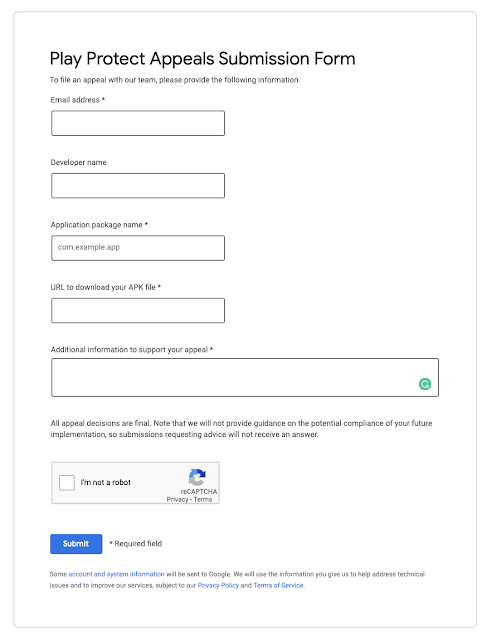
This has other permanent solution - You need to submit your app to Google for review on below URL then after few days this problem will be fixed for your app.
Play Protect Appeals Submission Form URL - https://support.google.com/googleplay/android-developer/contact/protectappeals
This error comes due to NDK version mismatch, To resolve this error you have to download an older version of NDK and need to remap NDK path. Then you can build the project successfully. To do this please follow the below steps -
1. First, you need to open the NDK downloader page. You can open by using below URL -
https://developer.android.com/ndk/downloads/
2. Now at the bottom of this page, you can see "older versions of the NDK" and click on "NDK Archives" tag to see all older versions.
3. Agree with the Terms from this page by clicking on "I agree to the terms" button. After this, you can see all older versions of NDk.
4. Download your NDK older version from this list. In my case, it was "Android NDK, Revision 14b".
5. Open Android NDK location directory. You can check location from File -> Project Structure -> SDK location. Check below image for more information -
6. Now, Extract file which you have downloaded and move that folder in toolchains folder - (Or you can delete toolchain folder and past our recent downloaded toolchain on this location)
7. After this, you need to rebuild the project.
This will resolve your issue. In some case, you can also try below solution -
Open Android Studio and go to File -> Project Structure -> SDK location, uncheck NDK If you do not need this, and then restart android studio. This will resolve your issue.
Please post a comment if you are still having an issue in this. I will try to resolve that issue.
I am getting below error when I am trying to run project -
> cordova build android
Android Studio project detected
(node:15997) UnhandledPromiseRejectionWarning: Unhandled promise rejection (rejection id: 1): Failed to find 'ANDROID_HOME' environment variable. Try setting it manually.
Failed to find 'android' command in your 'PATH'. Try update your 'PATH' to include path to valid SDK directory.
To resolve this issue please run below commands in the terminal -
export ANDROID_HOME="/Users/chetandeshmukh/Library/Android/sdk"
export PATH="$ANDROID_HOME/platform-tools:$ANDROID_HOME/tools:$PATH"
How to find the Android SDK path?
First open android studio, Then click on SDK manager. For more info please check below image -
Now select Appearance & Behavior -> System Settings -> Android SDK
Now copy your SDK location with the help of the above steps and update in command.
This process will set the Android Home path in your system.
Now try once again to run your project. This process will resolve your problem. If you still facing any issue please add your error in the comment section. We will resolve this.